Connect the Figma plugin
The Cropink plugin for Figma, Cropink Design Tools, sends frames from Figma to Cropink as designs, sends layers as inserts, and draws your Cropink designs in Figma. Before you can use it, you connect the Figma file with your team.
Install the plugin
Section titled “Install the plugin”Open the plugin’s page on Figma Community: Cropink Design Tools. Cropink links to the same page from the Figma plugin tokens tab. Add the plugin to your Figma account there, then open a Figma design file and run the plugin from Figma’s plugins menu.
Connect a file
Section titled “Connect a file”You need a team token. Create or copy one in Cropink, on your team’s Figma plugin tokens tab. The plugin’s How to get a token link opens that article.
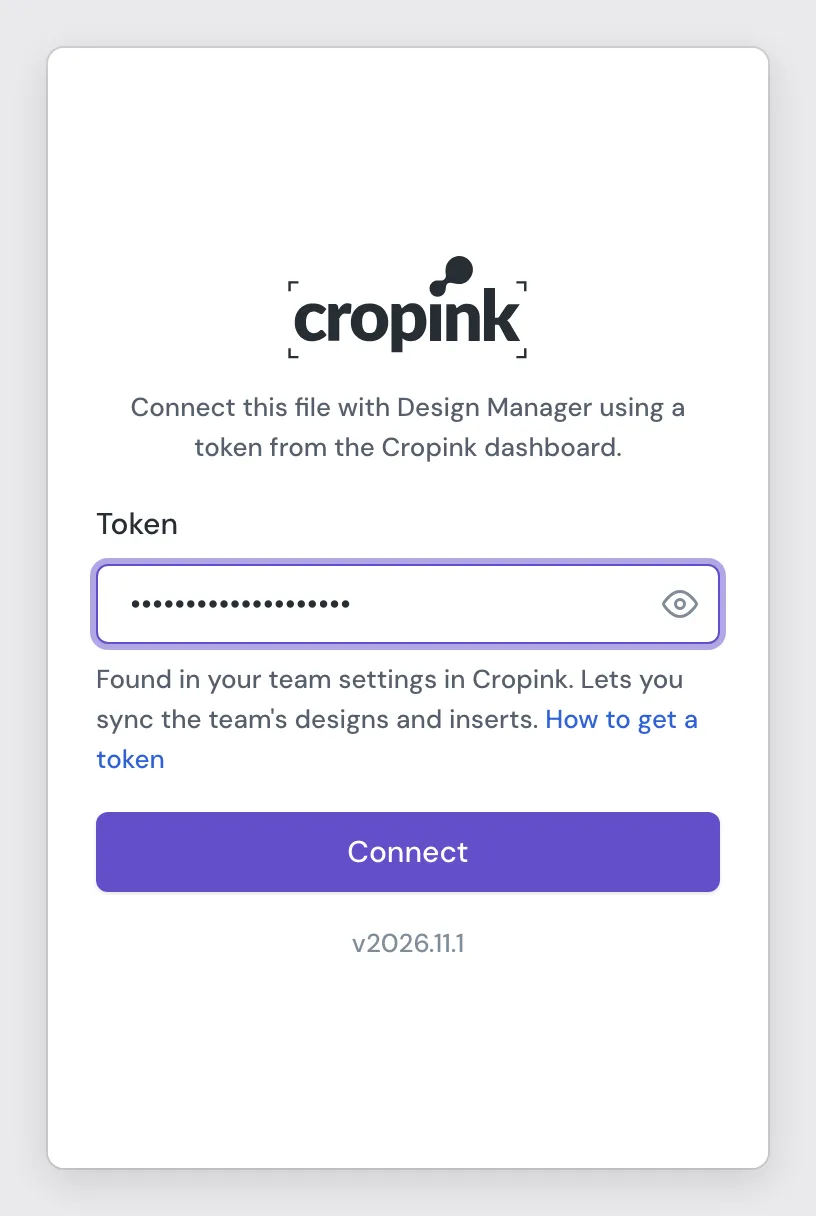
- Run the plugin in the Figma file. It opens on a screen that says: Connect this file with Design Manager using a token from the Cropink dashboard.
- Paste the token into the Token field. The token stays hidden; click the eye button (Show token) to check it.
- Click Connect (active once the field holds a token). The button shows Connecting… while Cropink checks the token.
If Cropink does not accept the token, a red message under the field starts with Login failed and gives the reason. Check that you copied the whole token and that it was not deleted in Cropink.
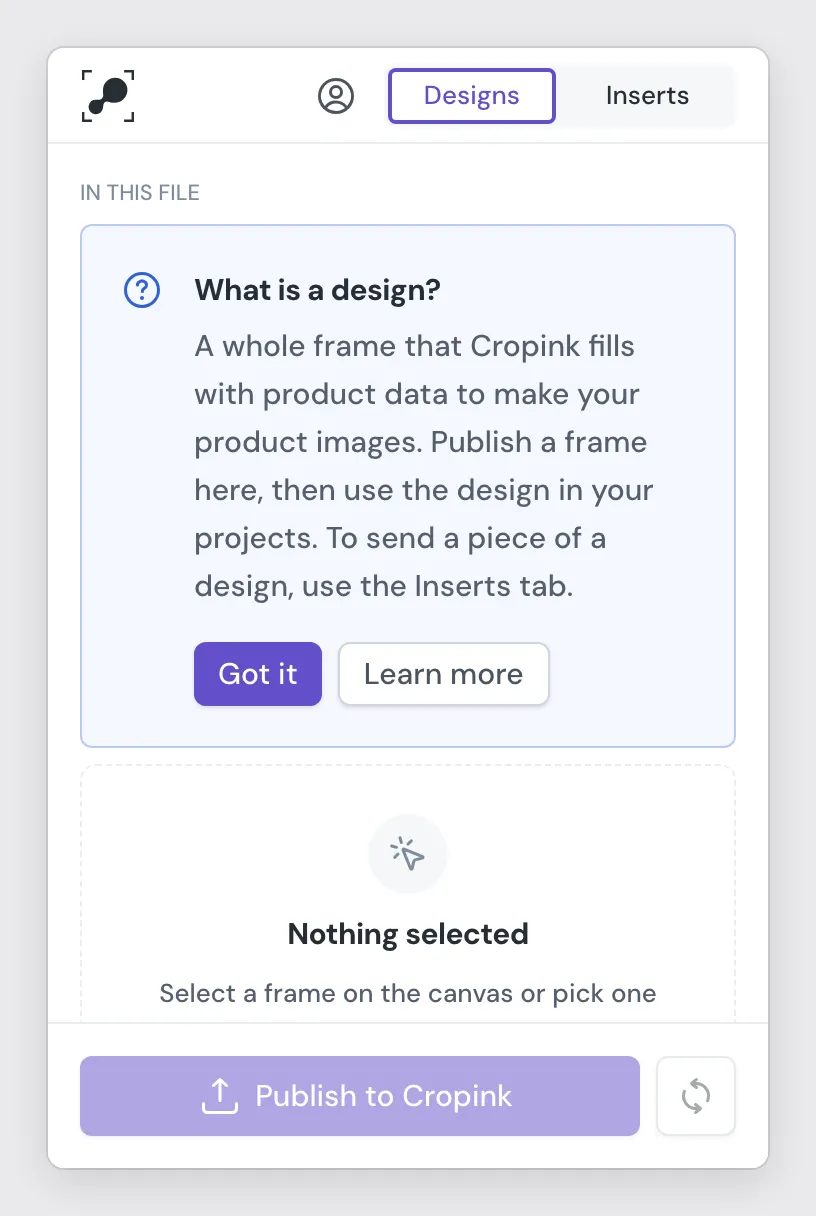
Once connected, the plugin opens on the Designs tab. With nothing selected in Figma, it lists the frames of the current page. Each tab starts with a short note that explains it (What is a design? and What is an insert?) until you click Got it; then it is gone in every file. Learn more opens the help.
What the connection covers
Section titled “What the connection covers”- The whole team. A team token works for all of the team’s designs and inserts. Designs you create from Figma are added to that team.
- The file, not you. The connection is saved in the Figma file. Anyone who opens the plugin in that file works with the same team, without a token of their own. To use another team, connect another file.
Switch between designs and inserts
Section titled “Switch between designs and inserts”The header of the plugin has two tabs. You cannot switch while the plugin sends or imports something.
- Designs: publish frames to Cropink and import designs. See Publish a design from Figma and Import a design into Figma.
- Inserts: send layers as inserts and map their layers to product data. See Inserts from Figma.
The account menu
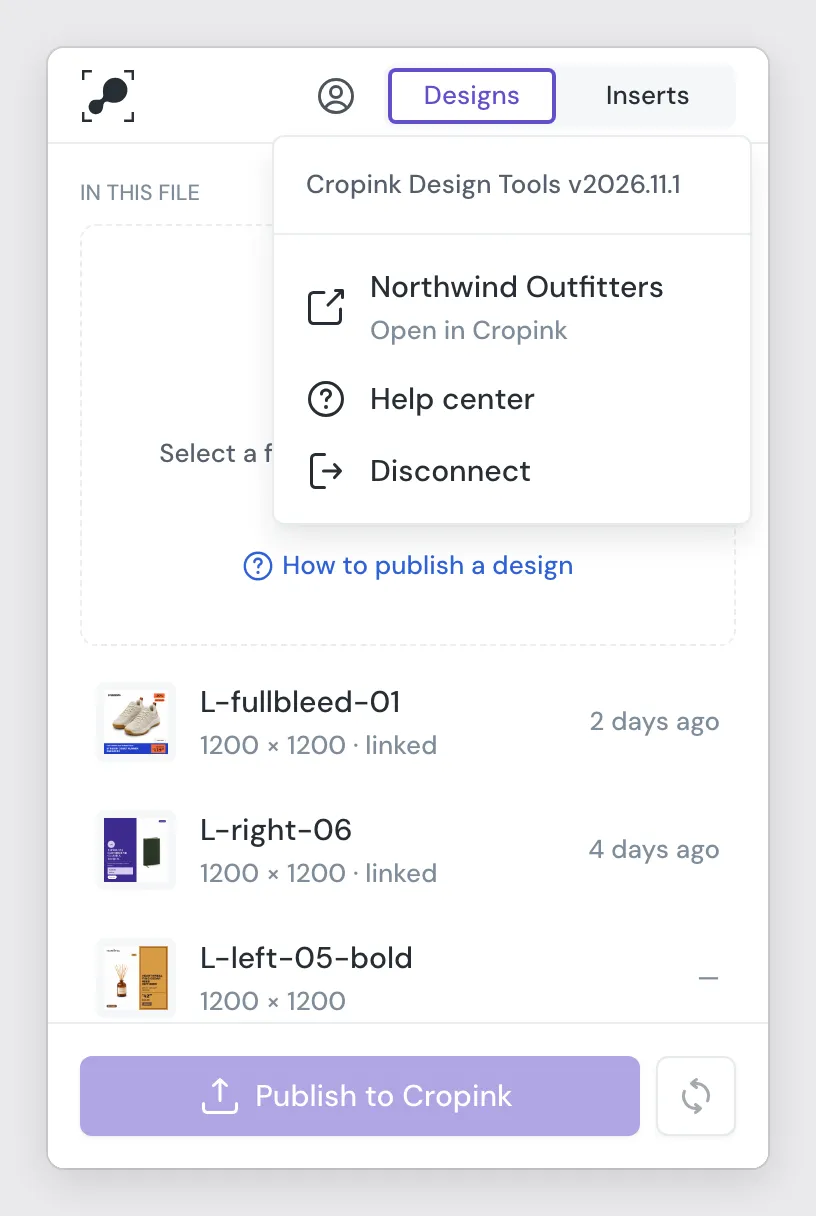
Section titled “The account menu”The Cropink symbol at the top left (Open Cropink) opens your team in Cropink in the browser. Next to the tabs, the Account button opens a menu with the plugin’s name and version and:
- your team’s name with Open in Cropink: opens the team in Cropink. Until the plugin has loaded a design, it says Your team;
- Help center: opens this help;
- Disconnect.
Disconnect
Section titled “Disconnect”Open the Account menu and click Disconnect. The plugin goes back to the Connect screen, for everyone who uses the file.
When the plugin asks you to connect again
Section titled “When the plugin asks you to connect again”- Figma shows Your Cropink session expired, connect again and the plugin opens on the Connect screen: Cropink no longer accepts the connection, for example because the token was deleted. Paste a valid token and connect again.
- When you open the plugin, Figma may show Could not reach Cropink, try again in a moment: the plugin could not reach Cropink, for example while you were offline. The file stays connected; try again in a moment.